
Create a Server
Connect a Discord server to RestoreCord, name its verification link, choose whether verifying gives or removes a role, and publish the verify message.
Create the server from the RestoreCord Dashboard after your custom bot is connected. The dashboard checks bot access, server permissions, and role setup as you go.
Quick Setup
Open Servers, click Add new server and follow these steps.
Go to Servers › Add new server
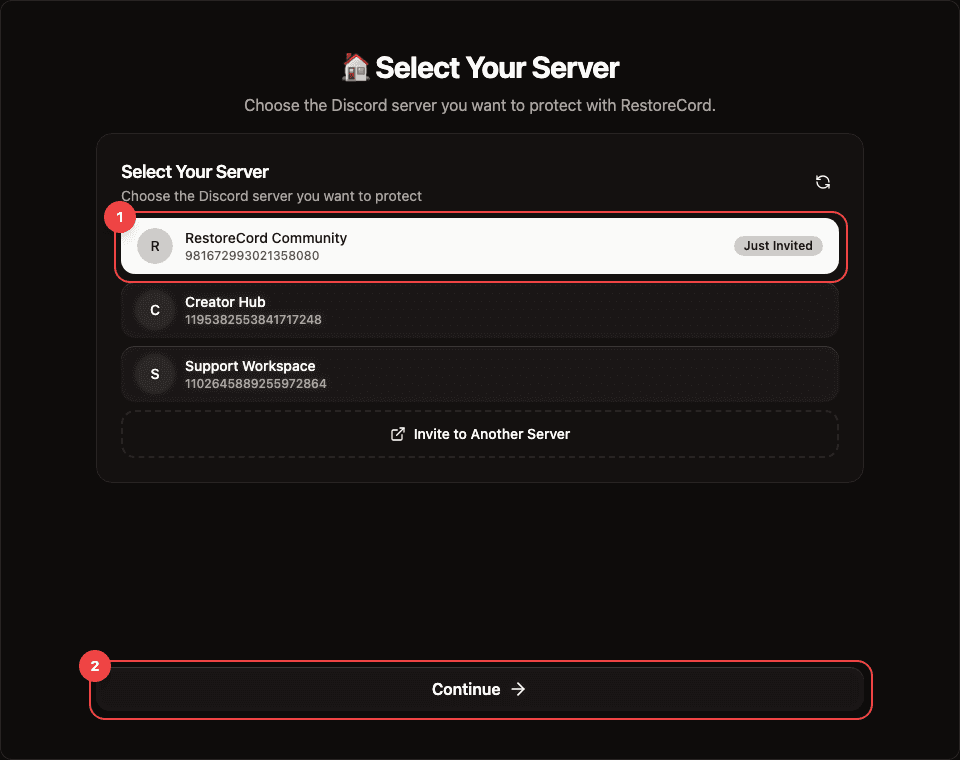
Choose the Discord server
Select the server where members should verify, then continue. If the server is missing, invite the selected bot or confirm that you are logged into the correct Discord account.
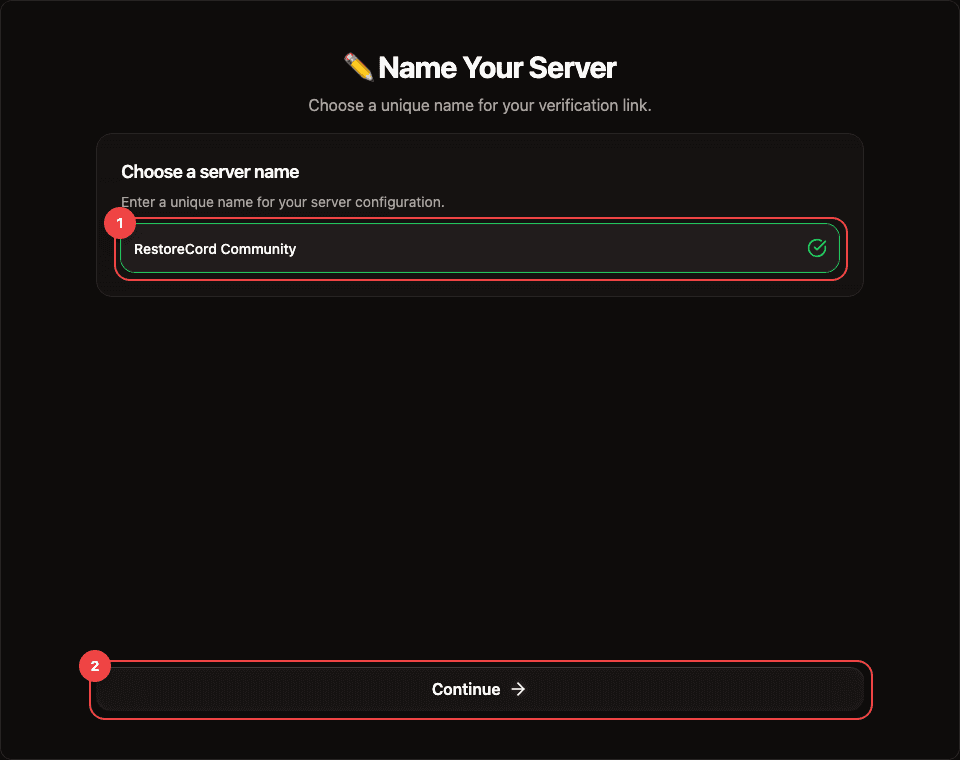
Name the RestoreCord server
Pick the name used for the verification link, for example https://restorecord.com/verify/your-server-name.
- Use a recognizable name.
- Start with a letter.
- Keep it between 3 and 99 characters.
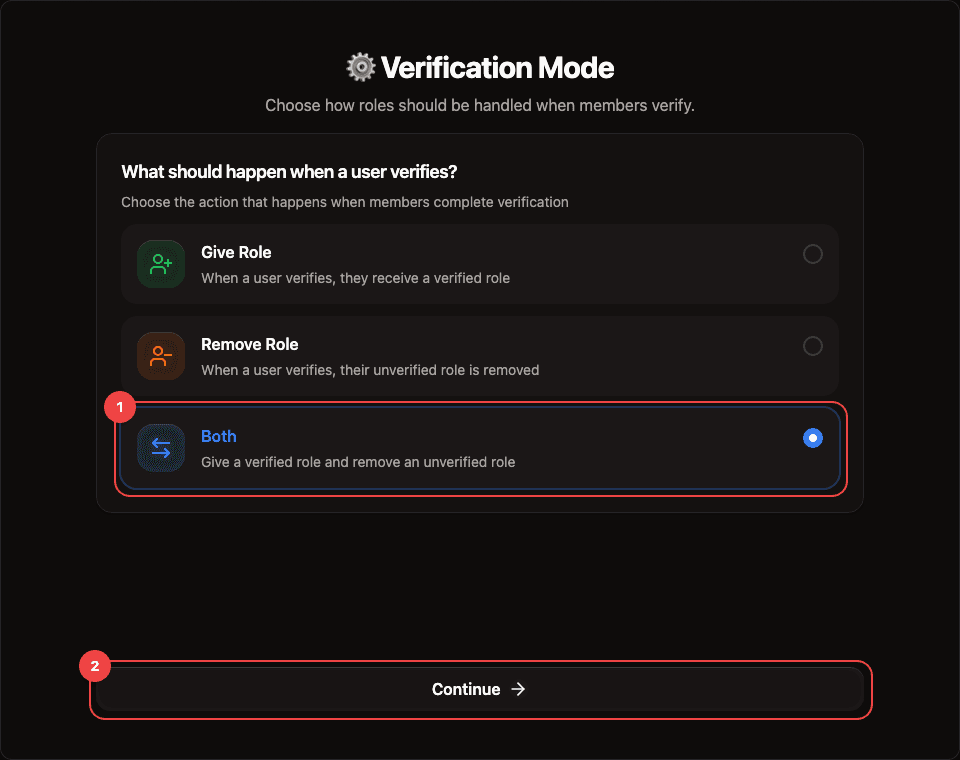
Choose what verification does
Select the role action that matches how your Discord server is locked down.
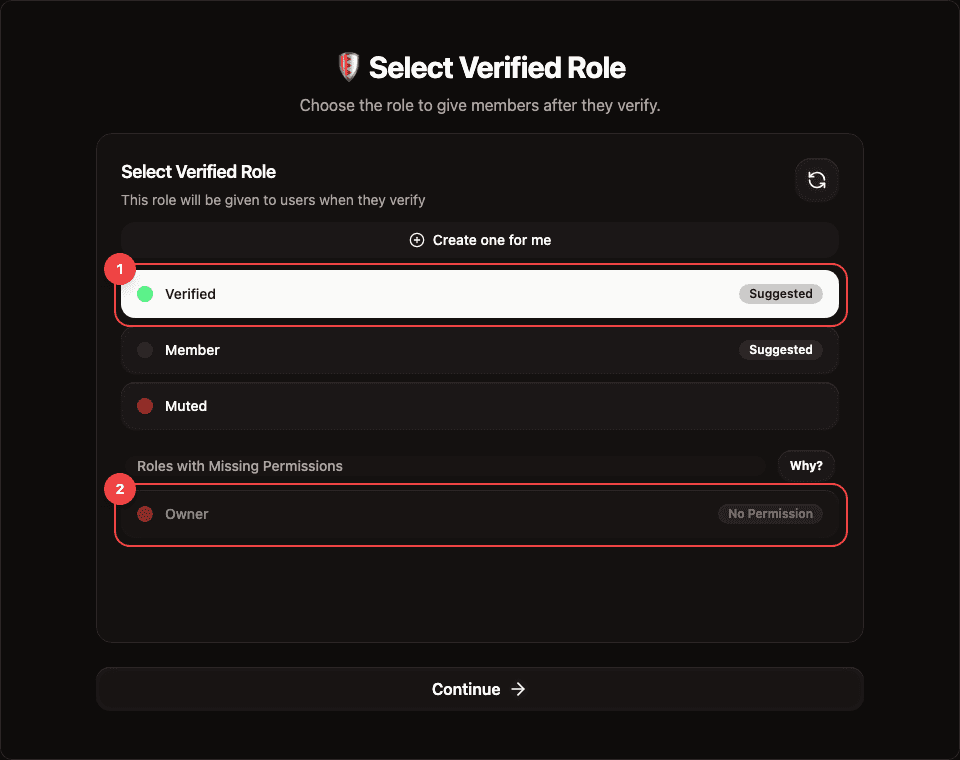
Select the role
Choose the role RestoreCord should add or remove. If the role does not exist yet, use the role creation option when the bot has permission to manage roles.
Role Behavior
| Mode | Use when | What RestoreCord does |
|---|---|---|
| Give Role | Members should gain access after verifying. | Adds the selected verified role. |
| Remove Role | New members should start with a restricted unverified role. | Adds the unverified role when a member joins and removes it after verification. |
| Both | Verified members should gain a normal member role and lose a restricted role. | Adds the unverified role on join, then adds the verified role and removes the unverified role after verification. |
Finish Setup
After the server is created, open the Discord channel where members should verify and run /setup with the RestoreCord bot. That command publishes the verification message for your community.
In the #verify channel, type /setup in the message box. Discord's command menu lists Commands matching /setup; pick the /setup entry from the RestoreCord app, described as "Set up the verification channel and message for this server".
If /setup does not appear in Discord's command menu, restart Discord and try again. If it still does not show up, contact RestoreCord support.
Expected result: the server appears in RestoreCord, the role action is saved, and members can start verification from the Discord message.